Blog post
TCP flags are control bits in the TCP header that tell both ends of a connection what to do with a packet: whether to send data immediately, prioritize it, establish a connection, or close one.
Two flags that often appear in packet captures but are rarely explained clearly are PSH and URG:
- PSH sends data immediately without waiting for the buffer to fill.
- URG prioritizes specific data above everything else in the stream.
Understanding what triggered either flag turns an ambiguous packet trace into a readable sequence of decisions. In this article, we'll explain how each flag works, why it gets set, and what to look for when you see it in a capture.
Where PSH and URG Fit Among All TCP Flags
TCP defines six control flags, and each one handles a different part of how a connection is managed.
FlagFull nameWhat it doesSYNSynchronizeInitiates a TCP connection between two hostsACKAcknowledgmentConfirms receipt of data or a connection requestFINFinishSignals the sender has no more data to send; begins connection teardownRSTResetAbruptly terminates a connection, usually due to an errorPSHPushTells TCP to send data immediately without waiting for the buffer to fillURGUrgentMarks specific data as high-priority for the receiving application to process first
PSH and URG are the two flags most likely to confuse a packet trace. Here's how each one actually works.
What the PSH Flag Does
The PSH flag tells the sending TCP stack not to wait for the buffer to fill before sending data. Instead of holding smaller packets until there's enough data to fill a full segment, PSH forces immediate dispatch to the receiving application.
A browser requesting HTML from a server sends a request too small to fill a full TCP segment. Rather than wait for the buffer to fill, the request is packaged and marked with a PSH flag, telling the operating system to send it immediately.
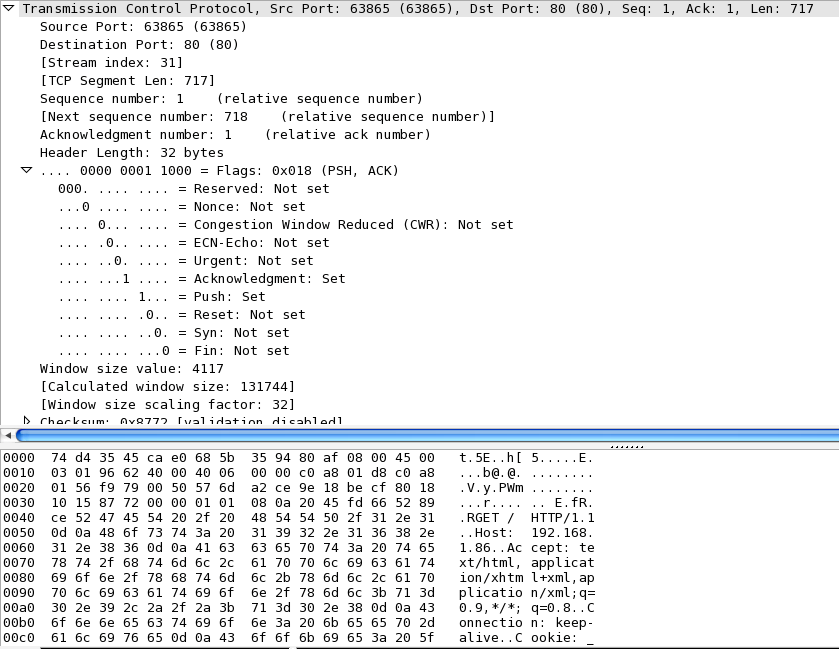
The PSH flag is determined by the operating system's TCP implementation. Berkeley-derived systems, for example, set PSH to signal that the client's send buffer is empty.
This shows up in the response to the request above, captured below.
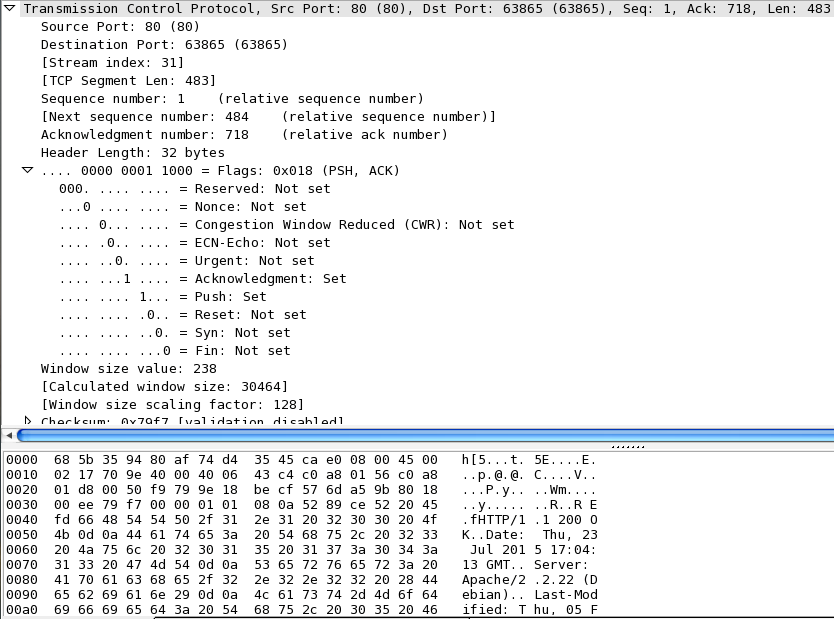
It's a small reply, marked with a PSH before the transaction is concluded with the FIN.
When you see PSH set in a capture, it typically means the sender had data too small to fill a segment and the OS decided not to wait. If PSH appears on nearly every packet in a trace, that's normal; it just means the application is sending small, frequent bursts rather than large chunks.
What the Urg Flag Does
The URG flag lets the stream and receiving application know that certain data needs to be prioritized. URG is set when an application needs the receiver to act on specific data immediately, regardless of what else is already in the stream.
For example, you might have a file transfer that needs to be aborted because you accidentally sent the wrong file. In that case, the URG flag is set on the packet carrying the abort signal, with the urgent pointer marking exactly where the urgent data ends in the segment.
The receiving application reads that urgent data first, processing the abort, before handling anything else in the stream.
PSH is typically set alongside URG, since urgent data shouldn't wait for the segment to fill before being sent.
Per Stevens (Section 20.8), implementations differ on URG, with some treating it as out-of-band signaling rather than strict in-band priority data. That inconsistency is why a fully RFC-compliant URG packet trace is hard to find in practice.
If you do see URG in a capture, check the urgent pointer field in the TCP header. It tells you exactly how many bytes of urgent data are in that segment. Also check whether PSH is set on the same packet, which it typically will be.
Read TCP Flags in Your Own Captures
The best way to solidify this is to open Wireshark and pull a real capture.
Filter for tcp.flags.push == 1 to see PSH in action, or tcp.flags.urg == 1 if you want to hunt for URG; though don't be surprised if that one comes up empty.
Every HTTP request, browser session, and file transfer you capture will have PSH set somewhere. Once you know what triggered it, the rest of the trace starts making sense a lot faster.
Summary
This is some text inside of a div block.


